
AV Guides, Howto & Guides
GamesCare Smart Scart Switch – Firmware Update 3.1.1
GamesCare have just released a great new firmware update for their Smart SCART switch. The most exciting new feature in this firmware is integration with the PixelFX Morph 2K, Morph 4K and GBS Control scalers. To update the firmware on the switch, you can use the web interface if you are running firmware 2.1 or later (which covers all switches sold by VideoGamePerfection.com), or see this tutorial if you are running an earlier firmware.
The new Morph 4K/Morph 2K integration is particularly slick, let’s take a look at how it works. Your GamesCare switch will need to be in client mode and connected to the same home network as your Morph. Start by opening a web browser and navigating to the switches web interface. You can find the switches IP address using the LCD and the menus. If you need help with any of this, check out our quick start guide here.
Once you have the web interface open, click on “Settings” from the menu on the left (or at the bottom on a mobile device). The following page should be displayed (click or tap any image to enlarge it).
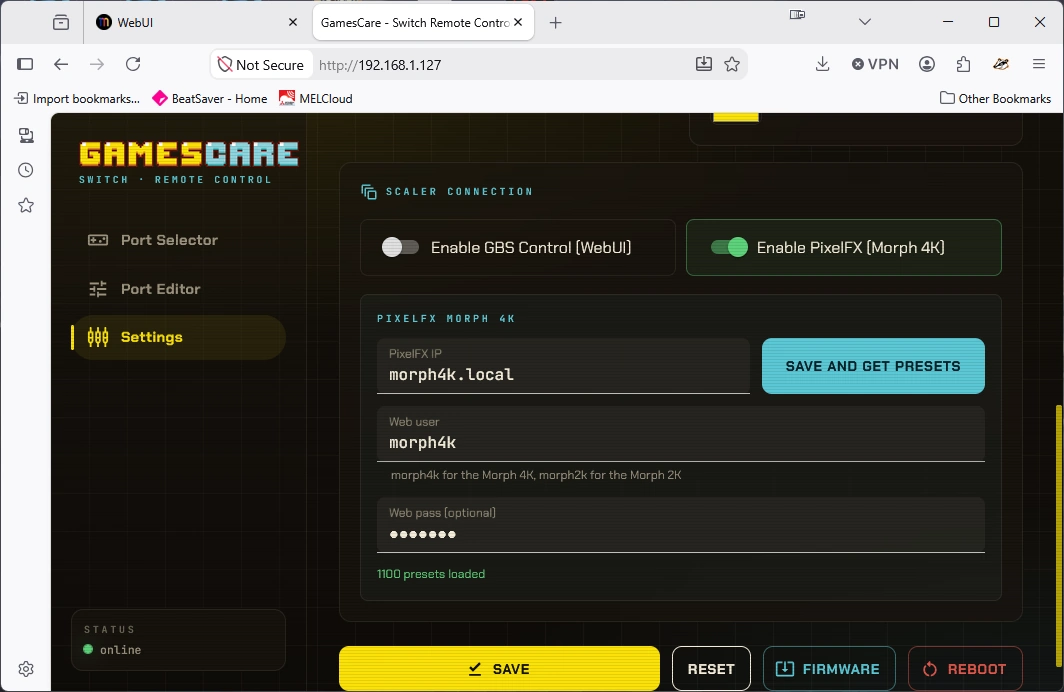
Scroll down and find “Enable PixelFX [Morph 4K]” and turn this setting on (the toggle says Morph 4K but it works just as well with the Morph 2K too). In the box below, labelled “PixelFX IP”, enter the web address of the Morph 4K on your home network (usually morph4k.local for the Morph 4K and morph2k.local for the Morph 2K). If your home router does not support Multicast DNS (mDNS) then you will need to enter the IP address of your Morph instead, you can find this on the System/WiFi menu on the Morph.
In the next two boxes you should enter the web username and password for your Morph (or leave these blank if you have disabled credentials). Usually the username is “morph4k” for the Morph 4K and, unsurprisingly, “morph2k” for the Morph 2k. The password is whatever you set it to be when setting up your Morph initially.
With all the information entered, you should be able to click “Save and get presets”. If everything is correct, you should see the message in green saying that “x presets loaded”. This number will vary depending on how many presets you have on your Morph (from the official preset pack and any you created yourself).
Don’t forget to click on the big yellow “Save” button, then click on “Port Editor”. This is shown in the screenshot below.
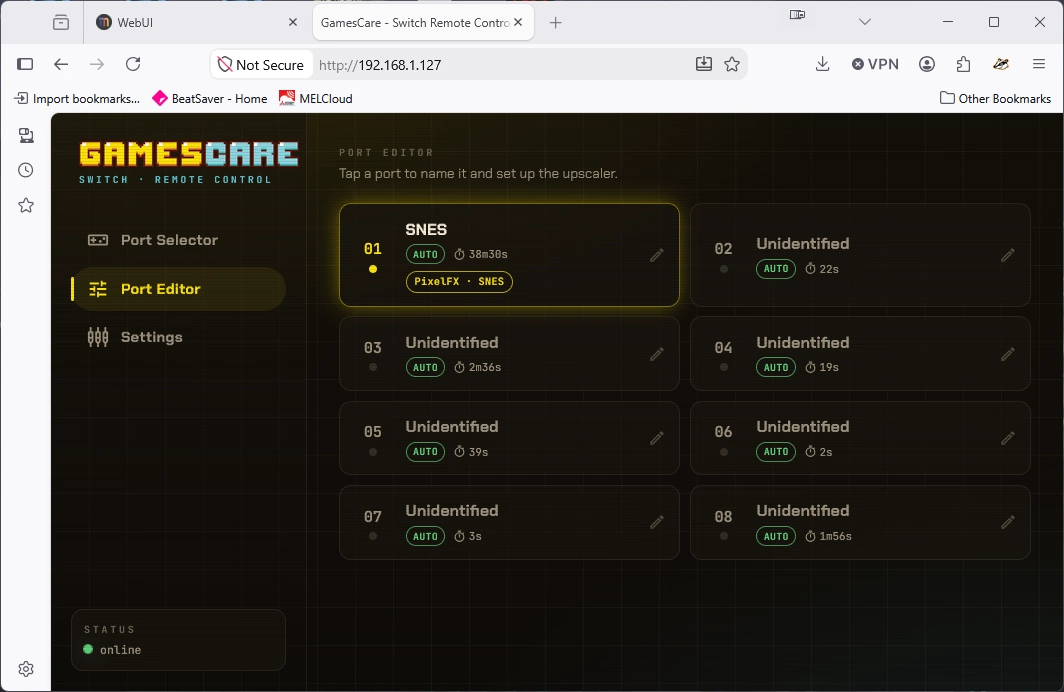
Click on the port you want to edit. For example if your SNES is connected to Port 01, then click on that.
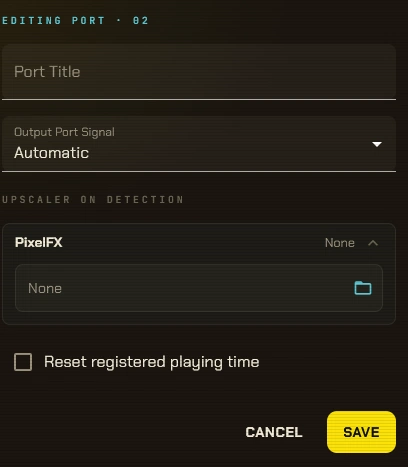
Enter a name for the port (e.g SNES). Output type should generally be left as Automatic. Now comes the interesting part, notice where it says “PixelFX”. Click on the little blue folder and this happens:-
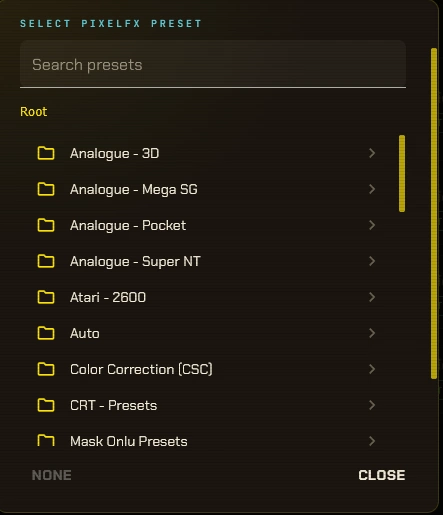
You can now browse the entire library of presets on your Morph and choose whichever one you want to activate automatically when this port becomes active. When you have chosen the preset, the switch will give you the option to apply it now, just to test that everything is working. When you do this, the selection is sent over WiFi to the Morph. No special cables required, no legacy serial protocol.
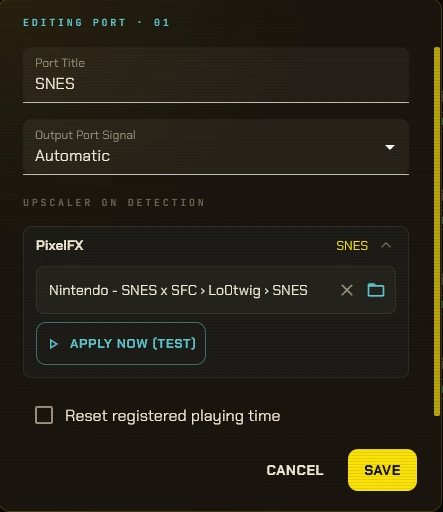
Click on “Save” and you’re done, Morph integration is set up. Now every time you power on your SNES (or whatever is connected to the port), the GamesCare switch will detect this, and tell the Morph to load your chosen optimal preset. This allows for automatic resolution detection etc, all without lifting a finger. If ever you change or update your profile you can easily go back into the configuration again and select the correct one, no guesswork required.
This is an excellent firmware update to an already powerful and polished product and really shows the power of both the Morph 4K and the GamesCare switch. Premium products for a premium setup.
More stock of GamesCare SCART switches is due this month. Stock of Morph 2K is also due this month, with Morph 4K delayed due to part shortages and now expected in Q4.